 18 min read
 Updated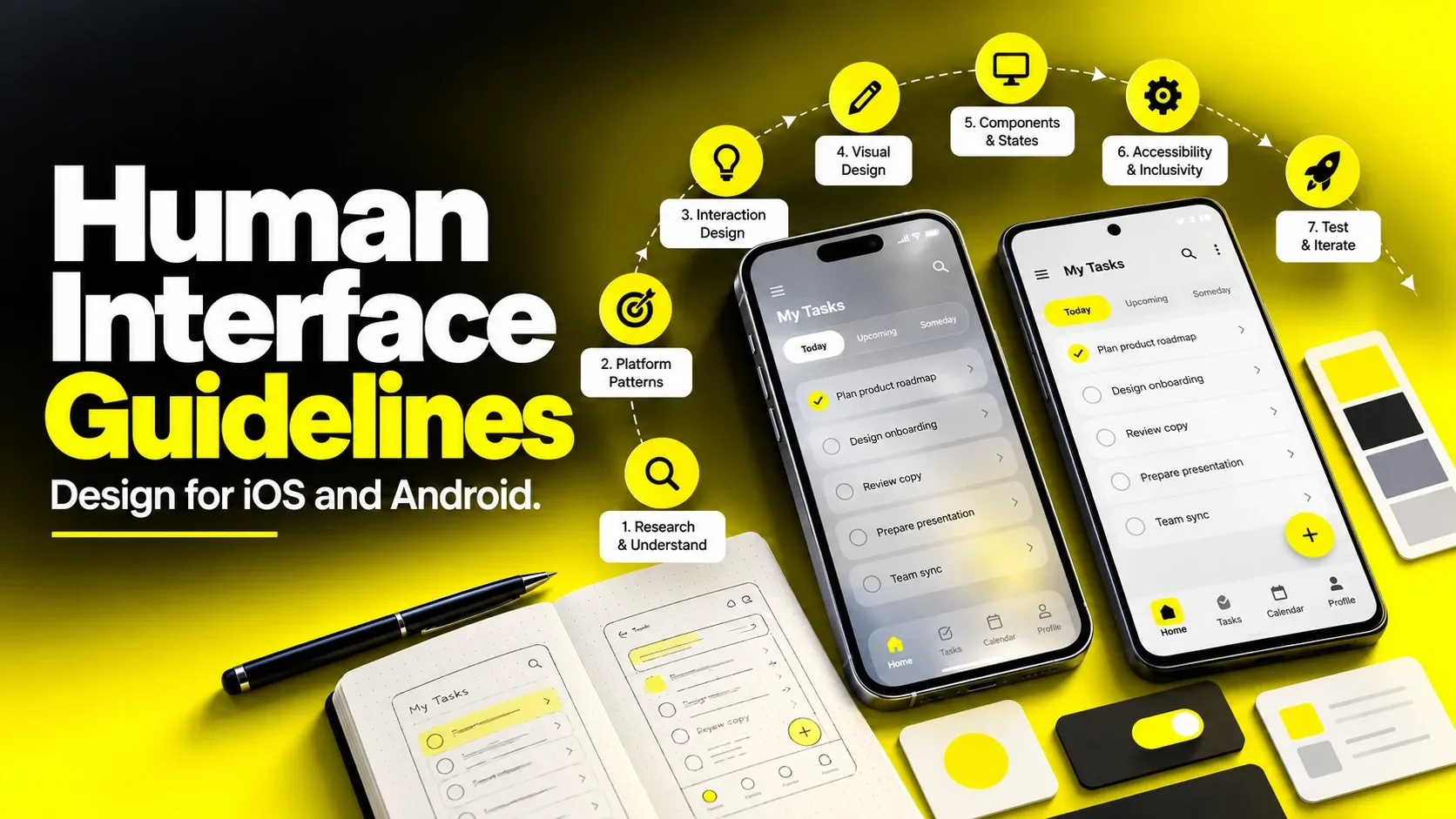
Human interface guidelines define how apps should look, behave, and interact with users across platforms. Apple’s Human Interface Guidelines, Google’s Material Design, and Microsoft’s Fluent cover layout, typography, accessibility, and interaction patterns.
I’m Maniruzzaman Jubayer, Co-founder & COO and Product Design Specialist at Wolfpixel, with 7 years of experience. I personally oversee website, app, dashboard and digital product design. This guide focuses on mobile interface conventions, interaction consistency and platform-aware app design.
Platform guidance helps teams build familiar, accessible experiences. Store review requirements are separate: an app can face review issues for substandard UI or insufficient functionality, but a visual deviation from the HIG does not automatically mean rejection. Use both design guidance and the applicable review requirements throughout the workflow.
This guide explains why these guidelines matter, how to apply them throughout the design process, and what founders and product leaders should expect from app design timelines, deliverables, and design partners.
What Human Interface Guidelines Actually Are And What They Are Not
Human interface guidelines describe platform-specific recommendations for how software presents content and behaves. Apple also uses Human Interface Guidelines as the proper name of its design documentation. Other ecosystems publish their own guidance or broader design systems.
The major published resources include the following. Their scope differs: some are guidelines, while others also provide component libraries, tools and design systems.
Start with Apple’s Human Interface Guidelines, Google’s Material Design and Microsoft’s Fluent 2.
Platform guidance and design systems
| Guideline system | Publisher | Primary platforms | Distinguishing emphasis |
|---|---|---|---|
| Human Interface Guidelines (HIG) | Apple | iOS, iPadOS, macOS, watchOS, tvOS, visionOS | Platform patterns, system components, accessibility and device integration |
| Material Design | Android, web, cross-platform | Design tokens, dynamic color, adaptive layouts, systematic theming | |
| Fluent | Microsoft | Web, iOS, Android, Windows; Microsoft product experiences | Platform adaptation, focused experiences and inclusive design |
| GNOME / KDE HIG | Open-source desktop communities | Linux desktop environments | Consistency across a distributed contributor base |
Desktop-specific references include the GNOME HIG and KDE HIG.
Apple’s HIG organizes its guidance into these broad categories:
- Foundations — accessibility, layout, typography, color, icons, materials, motion, writing. The rules that apply to everything.
- Patterns — onboarding, search, feedback, loading, settings, notifications, data entry. How common jobs should be handled.
- Components — buttons, tab bars, navigation bars, sheets, pickers, alerts. The actual building blocks.
- Inputs — touch, keyboard, pointer, Digital Crown, gyroscope, voice.
- Technologies — Apple Pay, Sign in with Apple, widgets, Live Activities, App Clips, HealthKit.
What they are not
Three clarifications save a lot of wasted argument in design reviews.
Platform guidance and your product design system are related, but not identical. Apple’s HIG provides recommendations; Material Design and Fluent also include system-level components and resources. Your product system adds brand tokens, reusable components, behavior documentation and implementation decisions for your own app.
Usability principles are broader reasoning tools. Platform guidance adds specific conventions and implementation expectations. Use both: reason about why an interaction is difficult, then consider the patterns available on the platform you support.
They are not permanent. Apple introduced a substantially new visual language across its platforms at WWDC 2025, and Google has refreshed Material more than once. Any team treating the guidelines as a document they read once has already drifted. Always design against the current published documentation for the OS version you are targeting, not against a screenshot from two years ago.
For the 2025 example, see Apple’s introduction to Liquid Glass at WWDC25. Consult the current HIG for your supported versions.
The three layers to keep separate
Thinking in layers prevents the most common strategic mistake treating brand and platform as competitors.
- Platform layer — expected navigation behavior, system gestures, safe areas, accessibility scaling and permission experiences.
- Brand layer — color, typography, writing voice, illustration, tone, motion personality and icon style.
- Product layer — your unique flows, data models, and screens that no guideline anticipates.
Keep your brand expressive while respecting the behaviors users rely on. Document and test deliberate exceptions.
“
KEY TAKEAWAY
Platform guidance, product systems and brand expression work together.
Why Human Interface Guidelines Carry Real Commercial Weight
Guidelines affect learnability, implementation choices, accessibility and release readiness. Treat these as practical product considerations rather than promises of a particular commercial return.
Store review is a separate gate. Apple’s App Review Guidelines include a design section and minimum functionality requirements, and its review guidance flags substandard user interfaces. Check those requirements before submission; HIG alignment alone does not guarantee approval.
Review Apple’s App Review Guidelines and its common review issues.
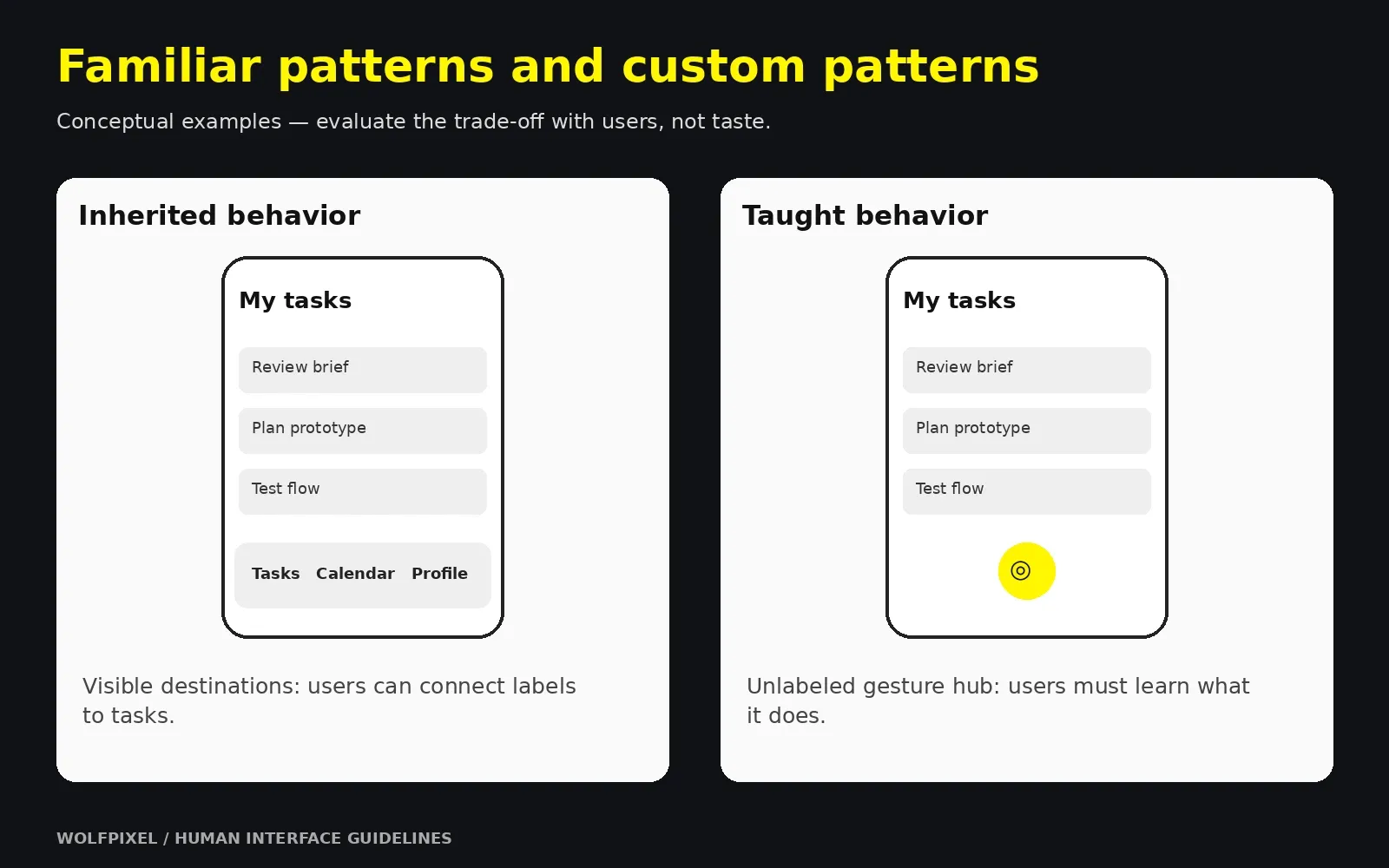
Familiar patterns can reduce the amount users need to learn. Standard navigation and dismissal behavior provide a starting point, while unfamiliar custom patterns may need more explanation and testing. Exact behavior depends on the component, platform and context.
Accessibility expands who can use your app. Review contrast, text scaling, meaningful labels, focus order and motion settings from the beginning. Test the implementation with assistive technologies and larger text; checking the visual design alone is not enough.
Use Apple’s accessibility design guidance and Android’s app accessibility guidance for the platform you are building on.
System components can reduce custom implementation and provide useful accessibility and localization behavior. They still require correct configuration and testing in your app. Replacing them creates additional code and behavior your team must maintain.
Trust is formed before evaluation. Users make fast judgments about whether an app feels legitimate. Mismatched iconography, inconsistent spacing, and controls that behave unexpectedly read as carelessness, and users generalize carelessness in the interface to carelessness with their money or data.
“
KEY TAKEAWAY
Design guidance and store approval requirements are related, but separate.
The Mobile App Design Process, Step by Step
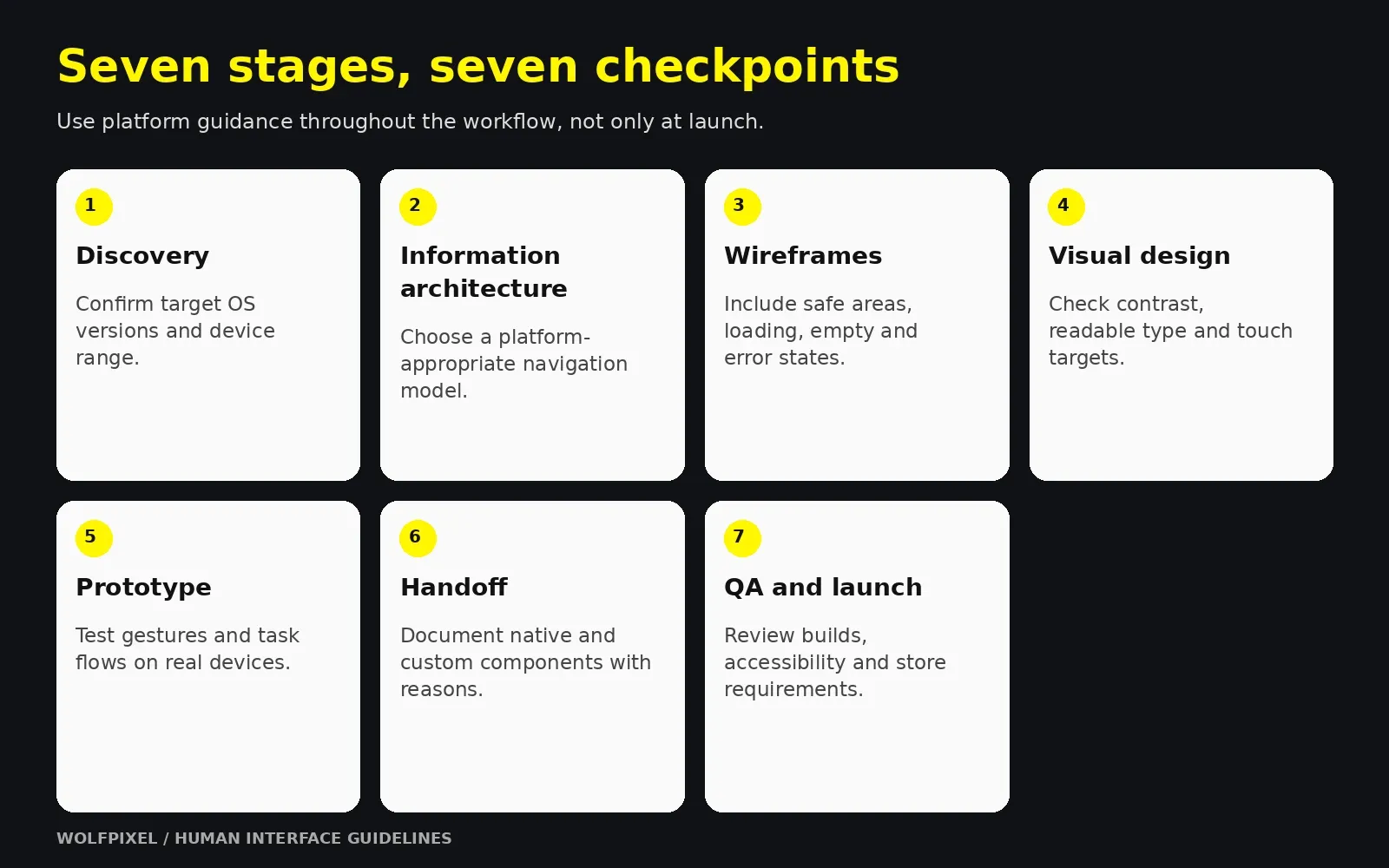
Here is the app design workflow we would recommend to any team building a serious product, with the guideline checkpoint that belongs at each stage. The value is not in the stage names most teams already know them but in the checkpoints, which are what actually prevent late-stage rework.
The seven app design process steps
Step 1 — Discovery and definition. Clarify the job the product does, who does it, and what success looks like. Audit competitors on the platform, not in a spreadsheet install them, use them, note which platform conventions they follow and where they break. Guideline checkpoint: decide your target OS versions and device range now. This determines which components and APIs are available to you and constrains everything downstream.
Step 2 — Information architecture and user flows. Map the content model and the primary journeys before drawing a single screen. Decide your top-level navigation structure tabs versus a hierarchy versus a single focused surface. Guideline checkpoint: choose a navigation model the platform supports natively. This is the single most consequential decision in the entire process, and the most expensive to reverse.
Step 3 — Wireframes. Low-fidelity structure: what is on each screen, in what priority, and what happens when you tap it. Resist styling. Wireframes exist to argue about hierarchy and flow while arguing is still cheap. Guideline checkpoint: wireframe on real device dimensions with safe areas marked, and include the empty, loading, and error state of every screen, not just the happy path.
Step 4 — Visual design and UI. Apply the brand layer. Build a type scale, color system, spacing scale, iconography, and elevation model, then compose real screens from them. Guideline checkpoint: validate contrast ratios, minimum tap targets, and dynamic type behavior as you design rather than after. Confirm your color system survives both light and dark appearance.
Step 5 — Prototyping and validation. Turn static screens into something a real person can attempt to use. Test with users who match your audience. Guideline checkpoint: test on the device, in the hand, not in a browser window on a laptop.
Step 6 — Handoff and design system documentation. Deliver specifications, components, tokens, and behavior notes that an engineer can build from without guessing. Guideline checkpoint: document which elements are native components and which are custom, and justify every custom one.
Step 7 — Build support, design QA, and launch. Design does not end at handoff. Review builds on real hardware, catch drift, and refine. Guideline checkpoint: run a pre-submission review against store design requirements, accessibility settings, and every device size you claim to support.
Stage-by-stage summary
Mobile app design stages and guideline checkpoints
| Stage | Core question | Primary output | Guideline focus |
|---|---|---|---|
| Discovery | What are we building and for whom? | Requirements, platform decision | Target OS and device range |
| IA & flows | How is it organized? | Sitemap, flow diagrams | Native navigation model |
| Wireframes | What goes where? | Low-fidelity screens, all states | Safe areas, layout structure |
| Visual design | What does it feel like? | High-fidelity UI, style foundations | Contrast, type scale, tap targets |
| Prototyping | Does it work for real people? | Interactive prototype, test findings | On-device gestures and motion |
| Handoff | Can engineering build it exactly? | Specs, components, tokens | Native vs. custom component map |
| QA & launch | Did it survive implementation? | Reviewed builds, release assets | Store design requirements, accessibility |
“
KEY TAKEAWAY
Put a platform checkpoint inside every stage of the workflow.
For the broader workflow, see our step-by-step mobile app design guide.
From Wireframe to Launch: A Realistic Mobile App Design Timeline
Timelines are where expectations break. The ranges below are planning heuristics for the design track specifically not engineering, and not research-backed benchmarks. Treat them as a way to structure a conversation with a design partner, then let scope adjust them.
Illustrative design-track planning ranges — not engineering estimates or benchmarks
| Product scope | Rough design duration | Typical unique screens | Notes |
|---|---|---|---|
| Focused MVP, one platform | 4–8 weeks | 10–20 | Single core flow, minimal settings, native components throughout |
| Full consumer product, one platform | 8–16 weeks | 25–60 | Onboarding, account, payments, notifications, empty and error states |
| Two platforms with shared system | 12–20 weeks | 30–70 shared | Shared foundations plus platform-specific adaptations; effort depends on architecture and scope. |
| Complex or regulated product | 16 weeks and up | 60+ | Compliance flows, permissions, audit trails, heavier research load |
What actually drives the number
Estimate states as well as screens. Loading, empty, error, offline, permission-denied and success conditions add design and implementation work. Scope, research, review cadence and engineering constraints also affect duration.
Other genuine drivers:
- Number of platforms. A second platform is not a second project, but it is not free either. Navigation, back behavior, system components, and typography all differ.
- Decision latency. Clear ownership and scheduled reviews help teams resolve decisions without unnecessary waiting.
- Research depth. Recruitment, usability testing and analysis add time; include them explicitly in the plan.
- Brand maturity. If foundational brand work does not exist, the design process either absorbs it or proceeds on sand.
- Content readiness. Real copy, real data, real imagery. Placeholder content hides layout failures until it is too late to fix them cheaply.
A sensible phasing model
Here is an illustrative 12-week phasing model for a scoped design engagement. It is not a launch guarantee, and engineering can extend beyond it:
- Weeks 1–2: Discovery, IA, navigation decision locked.
- Weeks 2–4: Wireframes for the primary flow, including all states.
- Weeks 4–6: Visual foundations and two or three key screens designed to final quality.
- Weeks 6–10: Screen production across remaining flows, prototype built in parallel.
- Weeks 10–12: Testing, refinement, handoff documentation.
- Ongoing: Design QA during build, pre-submission review before launch.
Resolve navigation decisions early enough to test them before engineering commits to the structure. Revisit them when user evidence shows the model is not working.
“
KEY TAKEAWAY
Estimate screens, states, research and review time together.
The Mobile App Prototyping Process: Turning Guidelines Into Tested Decisions
A prototype is not a deliverable you make because it looks impressive on a board deck. It is an instrument for reducing the cost of being wrong. The mobile app prototyping process works best when fidelity is matched deliberately to the question being asked.
The fidelity ladder
Prototype fidelity and illustrative effort ranges — scope-dependent
| Fidelity | Best question it answers | Time cost | When to use |
|---|---|---|---|
| Paper or greyscale clickthrough | Is the structure comprehensible? | Hours | Immediately after wireframes |
| Linked static screens | Can users complete the core task? | 1–3 days | Before visual design is finished |
| Interactive high-fidelity | Does it feel right in the hand? | 1–2 weeks | Before handoff |
| Coded prototype | Is the interaction technically achievable? | Variable | For novel gestures, animation, or hardware features |
Match prototype fidelity to the question. Structure and comprehension can often be tested with a simple prototype, while gestures, visual feedback and technical behavior may require a more realistic or coded version.
What to test, specifically
Vague testing produces vague findings. Give each session concrete tasks and watch behavior, not opinions.
- First-run comprehension. Hand over the device with no explanation. Can they state what the app does within a few seconds?
- Primary task completion. Can they do the one thing the product exists for, unaided?
- Navigation recovery. After going three levels deep, can they get back to where they started?
- Gesture conflicts. Does any custom gesture fight the system’s back swipe, notification pull, or control center?
- Failure states. Break something deliberately. Do users understand what happened and what to do next?
- Accessibility conditions. Run with the largest dynamic type setting, with a screen reader, with reduce-motion enabled.
Test on the device
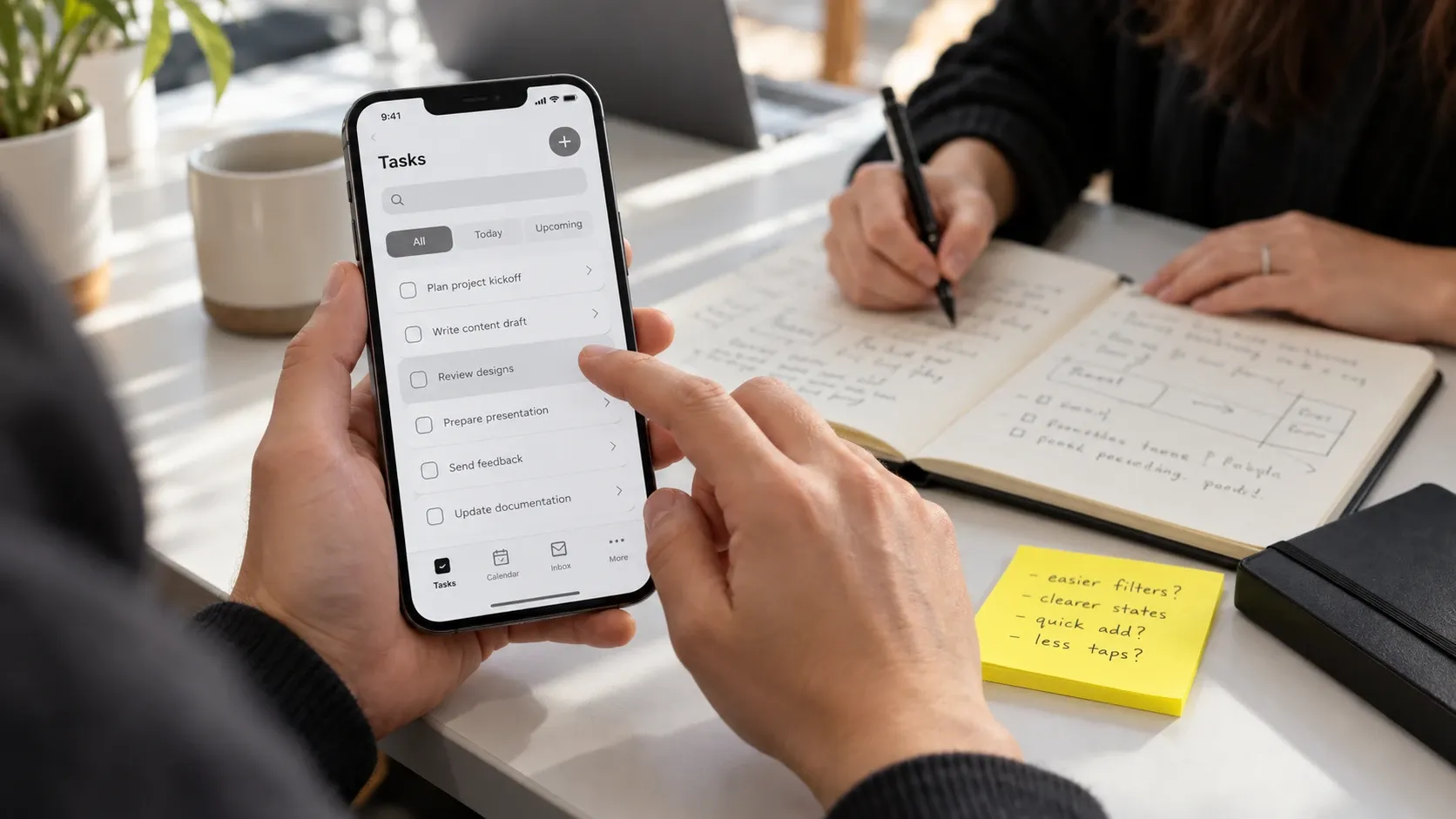
Prototypes reviewed on a desktop monitor systematically flatter themselves. Thumb reach, one-handed use, glare, notification interruptions, and the actual physical size of a tap target only reveal themselves on hardware. Every prototype that will ship to phones should be tested on phones — including at least one small screen and one large one.
A prototyping rhythm that works
Use iterative qualitative rounds where practical: test important tasks, analyze observations, revise the prototype and test again. Choose recruitment and sample size for the question and relevant user groups. A small round is a way to learn, not a guarantee of complete issue coverage.
“
KEY TAKEAWAY
Match prototype fidelity to the question you need to answer.
App Design Deliverables You Should Expect and How to Judge Them
If you are commissioning design work, this section is your checklist. The single most common cause of disappointment is not poor design ability it is an undefined deliverable list, where both sides assumed different things were included.
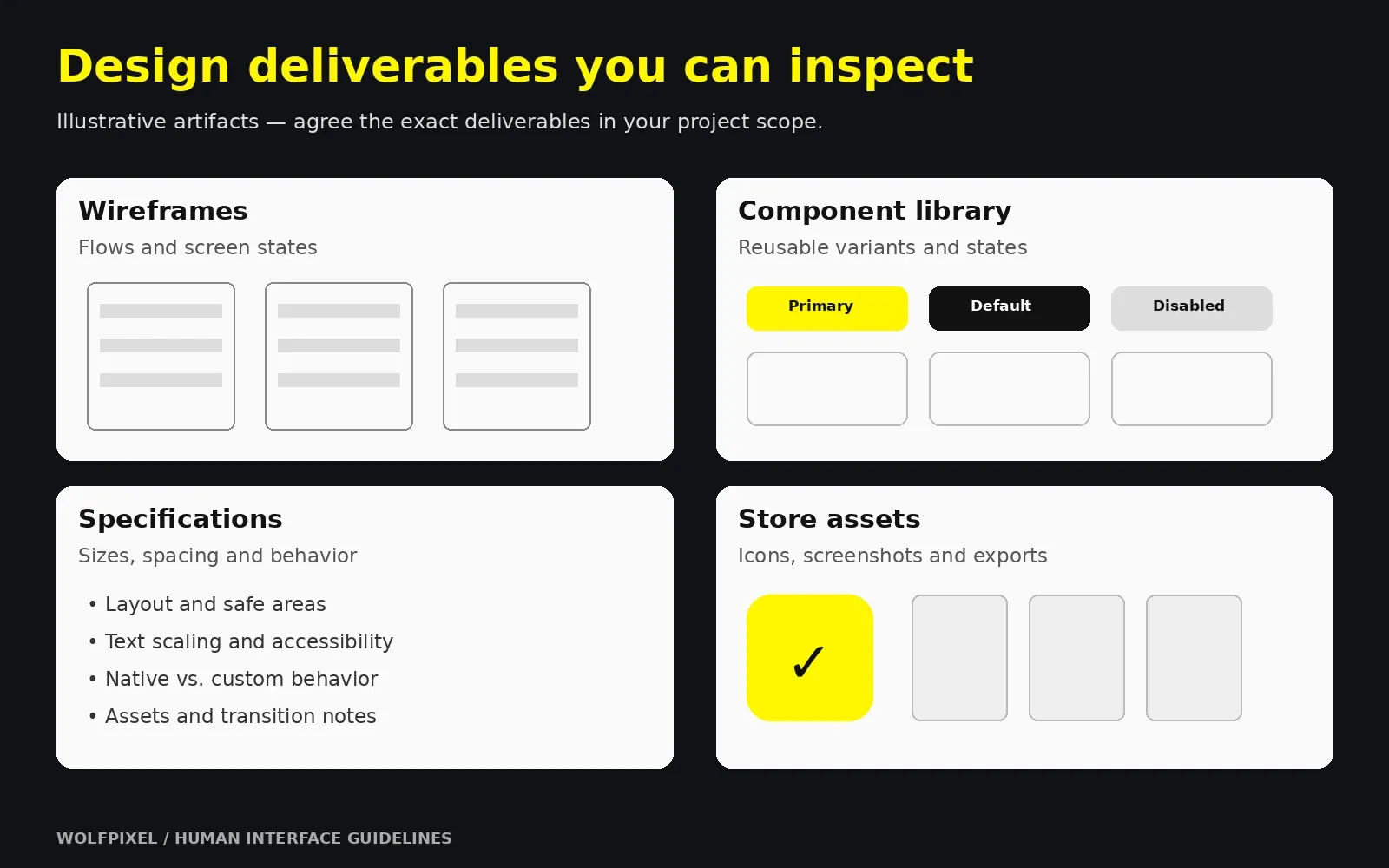
The deliverables list
App design deliverables and review criteria
| Phase | Deliverable | What “good” looks like |
|---|---|---|
| Discovery | Requirements summary, platform decision | Explicit target OS versions and device range, written down |
| IA | Sitemap and user flow diagrams | Every entry point and dead end accounted for, including deep links |
| Wireframes | Low-fidelity screens, all states | Loading, empty, error, offline and success states present |
| Visual | Style foundations | Type scale, color system with contrast values, spacing scale, icon set, elevation |
| Visual | High-fidelity screens | Light and dark appearance, at least two device widths |
| Prototype | Interactive prototype | Real transitions, gestures, and at least one failure path |
| Research | Test findings | Observed behavior with recommendations, not just a highlight reel |
| Handoff | Component library | Named, reusable components with variants and states |
| Handoff | Specifications | Spacing, sizing, behavior notes, animation timing, asset exports |
| Handoff | Accessibility notes | Screen reader labels, focus order, dynamic type behavior |
| Launch | Store assets | App icon at all sizes, screenshots, preview graphics |
| Launch | Design QA report | Implementation review against specification |
How to evaluate design work as a non-designer
You do not need craft expertise to assess quality. You need the right questions.
Ask to see the states. Request the error state, the empty state, and the loading state of the main screen. A portfolio of perfect happy-path screens with full data is a portfolio of screenshots, not a product design. This one question separates decorative work from production work faster than any other.
Ask why each custom component exists. Every deviation from a native component should have a stated reason. “It looked better” is not a reason. “The native picker cannot support our two-axis selection, so we built a custom control that preserves the same gestures and accessibility labels” is.
Ask what happens at the largest text size. If the answer involves hesitation, accessibility was not designed in.
Ask to see it on a device. Not a mockup image on a laptop. The actual prototype, on actual hardware, in your hand.
Ask how the design will be maintained. A design that cannot be extended by your team after the engagement ends is a liability with a nice cover.
Look at process artifacts, not just outcomes. Ask to see wireframes, iteration history, and test findings from a past project. Teams with genuine depth have messy middles they are proud of. Teams selling visuals have only finals.
“
KEY TAKEAWAY
Review states and implementation artifacts alongside finished screens.
Review Wolfpixel’s product design portfolio and ask about the research, states and implementation decisions behind each project.
Investing in Professional Design and Branding Support
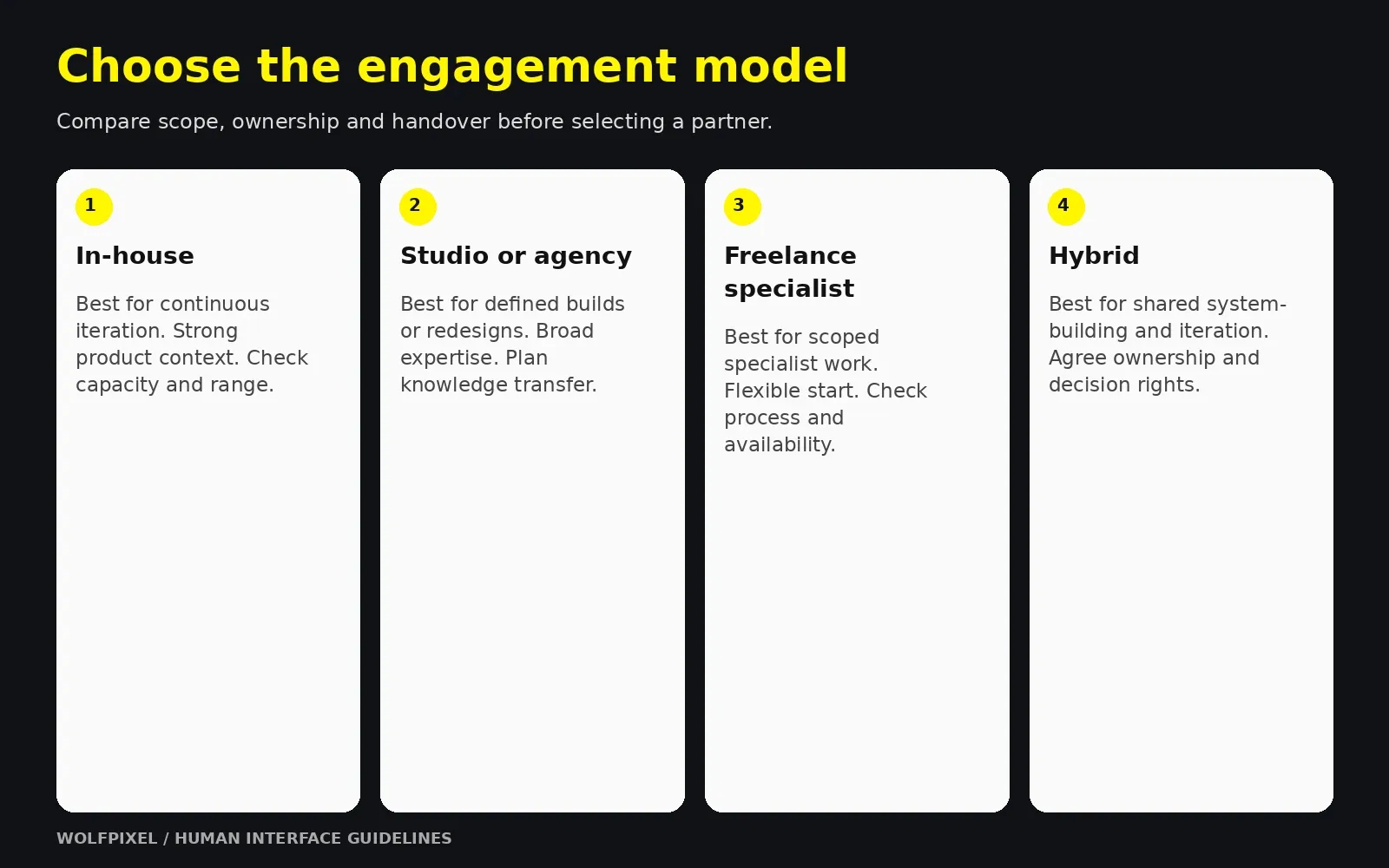
At some point every team decides whether to build design capability internally, hire an agency or studio, or run a hybrid. There is no universally correct answer, but there are predictable trade-offs.
Engagement models compared
App design engagement models
| Model | Best suited to | Strengths | Watch for |
|---|---|---|---|
| In-house designer | Products in continuous iteration | Deep context, always available, compounding knowledge | Slow to hire, single point of failure, limited range |
| Design studio or agency | Zero-to-one builds, rebrands, major redesigns | Breadth of pattern experience, established process, senior input | Context transfer at the end, availability windows |
| Freelance specialist | Defined, scoped pieces of work | Cost-efficient, fast to start | Variable process rigor, limited capacity for scale |
| Hybrid | Teams scaling from one product to several | External system-building, internal iteration | Requires clear ownership boundaries |
What actually drives investment
Rather than fixating on a headline figure, understand the levers, because these are what you can negotiate.
- Number of unique screens and, more importantly, states.
- Number of platforms and form factors.
- Whether brand foundations already exist. Naming, logo, voice, and visual identity work is a separate discipline; if it does not exist, someone will do it, formally or informally.
- Depth of research included. Moderated testing costs real time and removes real risk.
- Whether a documented design system is in scope. Screens are cheaper than systems, but systems are what make the next twenty screens cheap.
- Length of build-phase support. Design QA during engineering is the most frequently cut and most frequently regretted line item.
Framing the return honestly
Avoid the temptation to justify design spend with borrowed statistics. The defensible argument is more concrete and easier to hold up in a board meeting:
- Less custom control code to implement and maintain, with testing still required in the product.
- Release-readiness issues identified before submission, without a guarantee of store approval.
- Accessibility built rather than retrofitted, avoiding component-level rework.
- Interface confusion measured through user research and support data.
- Reusable components and documented decisions that can reduce duplicated design work.
A maintained design system makes it easier to reuse decisions across features. Its value depends on adoption, coverage and ongoing maintenance rather than a guaranteed delivery-speed increase.
When to bring design in
Bring design into the navigation and information-architecture discussion before implementation hardens the structure. Later design work can still improve a product, but structural changes may become more costly.
“
KEY TAKEAWAY
Agree scope, handover and build support before choosing an engagement.
Explore our mobile app design services, read our UI/UX design cost guide, or discuss your app design scope.
Common Mistakes, Risks, and How Teams Get This Wrong
These are the failure patterns that recur most often. Most are cheap to avoid at the start and expensive to correct later.
Mistake 1 — Designing one app and shipping it to two platforms
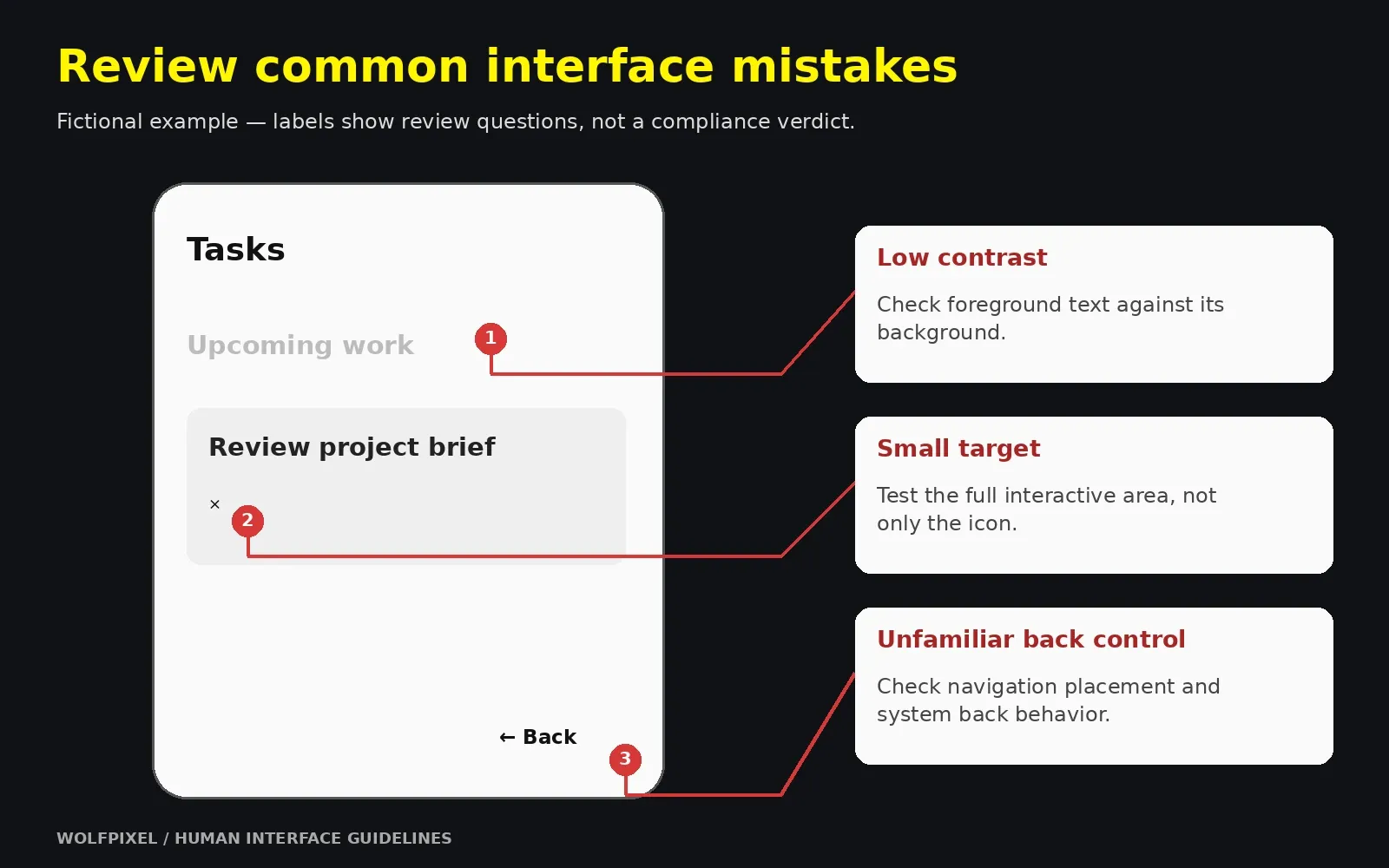
A single visual design pushed unchanged to iOS and Android breaks conventions on at least one of them. Back behavior, navigation placement, system typography, share sheets, date pickers, and permission dialogs all differ. Share your brand, your content model, and your flows across platforms. Adapt the platform layer.
Mistake 2 — Treating brand and platform as a zero-sum fight
The instruction “make it look nothing like a standard app” almost always produces a product that is harder to use and no more memorable. Distinctiveness lives in color, typography, illustration, copy voice, and motion personality — all of which are fully available to you inside platform alignment. Distinctiveness does not live in relocating the back button.
Mistake 3 — Designing only the happy path
The most common gap in design handoffs. Real users have no network, empty accounts, expired sessions, denied permissions, and failed payments. If those states are not designed, engineering will invent them under deadline pressure, and they will be the states your least happy users see most often.
Mistake 4 — Copying visual output without reading the reasoning
Guidelines explain why a pattern exists. Teams that copy a competitor’s screens inherit the appearance without the logic, and then cannot reason about edge cases the screenshot never showed. Read the foundations sections. They are shorter than they look and they pay for themselves.
Mistake 5 — Deferring accessibility to a post-launch phase
Accessibility decisions belong in the workflow. Contrast, text scaling, focus order, target areas and screen reader labels can require structural changes, so review them before and during implementation.
Mistake 6 — Skipping design QA during the build
Designs drift during implementation — not from carelessness, but from a thousand small judgment calls no specification anticipated. Without a designer reviewing real builds on real devices, the shipped product is a rough approximation of the approved design, and nobody notices until a user does.
Mistake 7 — Designing against outdated documentation
Guidelines change with OS releases. Design against the current published documentation for the version you are targeting, and schedule a guideline review after each major platform announcement.
Mistake 8 — Custom components without a stated justification
A custom control adds implementation, maintenance and accessibility work. System controls can evolve with platform updates, but their behavior in your app still needs review. Keep a record of each custom control and its reason, and reconsider it when a suitable platform option becomes available.
The underlying risk
Nearly all of these share one root cause: platform alignment treated as a review event rather than a process property. Something checked once, late, by one person. The fix is structural — checkpoints inside each stage of the app design workflow, as set out in Section 3, so that no single review carries the weight of the whole product.
“
KEY TAKEAWAY
Check the real implementation on devices and with accessibility settings.
Are human interface guidelines mandatory?
Apple’s HIG is design guidance, while its App Review Guidelines set approval requirements. HIG alignment does not guarantee approval, and a deliberate design variation does not automatically mean rejection. Review the applicable requirements and test whether your choices work for users.
Do human interface guidelines apply to web apps and PWAs?
Partially. Platform guidelines govern native surfaces, but the underlying reasoning — hierarchy, feedback, touch target sizing, accessibility, predictable navigation — transfers directly. If your PWA is installed to a home screen and behaves like an app, users will judge it by app conventions regardless of how it is built.
How do human interface guidelines relate to a design system?
Platform guidance provides conventions and recommendations; your product system defines reusable implementation and brand decisions. Material Design and Fluent also supply broader design-system resources that can support your own system.
Can a small team realistically follow all of this?
Start with well-supported platform controls, a consistent brand layer and focused user flows. Reserve custom work for cases that need it, and test accessibility, states and navigation in the actual app.
How often should we revisit the guidelines?
At minimum, after each major OS announcement, and again before any significant redesign. A short annual review of your custom component list against current native equivalents is also worth scheduling — platforms frequently ship native versions of controls teams previously had to build themselves.
What is the single highest-impact guideline decision?
The navigation model is often a high-leverage early decision because many flows depend on it. The most important decision for your app can also depend on its users, accessibility needs and core task.
Should we design for tablets and foldables at the same time?
Only if they are part of your launch commitment. If they are not, still design with adaptive layout in mind flexible grids and content-driven breakpoints so that supporting them later is an extension of the system rather than a redesign of it.
Build a mobile app that feels at home on each platform
Share your flow diagram, prototype or existing app. We can discuss platform patterns, design scope and the implementation checks your team needs.

Was this article helpful?

Written by
Maniruzzaman Jubayer
Co-founder & COO | Product Design Specialist at Wolfpixel
Maniruzzaman Jubayer is the Co-founder & COO of Wolfpixel and a product design specialist with 7 years of experience. He personally oversees website, app, dashboard and digital product design at Wolfpixel. In this article, he focuses on mobile interface conventions, interaction consistency and platform-aware app design.
View all articles